
- From the main menu, scroll down to hover over Settings.
- Click My Fire TV.
- Choose the developer options.
- Click Apps from unknown sources.
- Choose Enable.
- Return to the home screen and hover over the Search icon.
- Type "Downloader".
- Select the Downloader app.
- Click Download and click Open.
- Select Allow if this prompt appears and click OK.
- Type in the following URL exactly as shown here: https://bit.ly/32HqzSz and click Go To
- Wait for the file to download.
- Click Install.
- Go back to the device's home screen and under "Your apps and channels," click See all.
- Scroll down to hover over IPTV Smarters.
- Click the Menu button on the remote control (3 horizontal lines), then click Move Forward.
- Once the app is complete installation, open it.
- Click Add New User
- Choose to connect with the Xtream Codes API
- Enter your subscription information and click Add User
- Wait for the message "User added successfully" to appear
- Click on your profile and enjoy!
USE IPTV SMARTERS PRO
- This app is our number one recommendation.
- You can download it here
- Simply log in using the xtream code emailed to you and you're good to go.
Using the MYIPTV Player
- From the Windows Store, get MyIPTVPlayer.
- Go to Settings and select Add New Playlist.
- In the Remote String List section, enter any name as the list name and paste the URL we provided via email into the URL field.
- Go back to settings and select the channel playlist you just added.
- Go to the channels section and enjoy.
Using Perfect Player
Open the downloaded file using Perfect Player.
Download the m3u link we sent by email.
USING XCIPTV
- Download XCIPTV from the Playstore.
- Open the app.
- Choose the Xtream Codes API.
- Enter the username, password, and API URL received via email.
- Appreciate.
USE IPTV SMARTERS PRO
1. First we will install the Downloader app
This app will help you download IPTV Smarters (as browser downloads are not allowed)
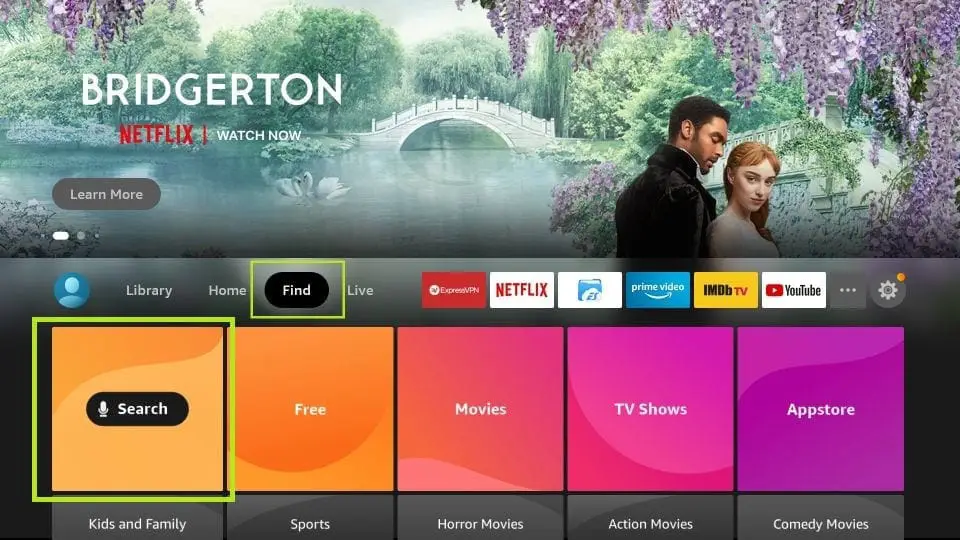
2. Click on the Search > Search option on the home screen of FireStick
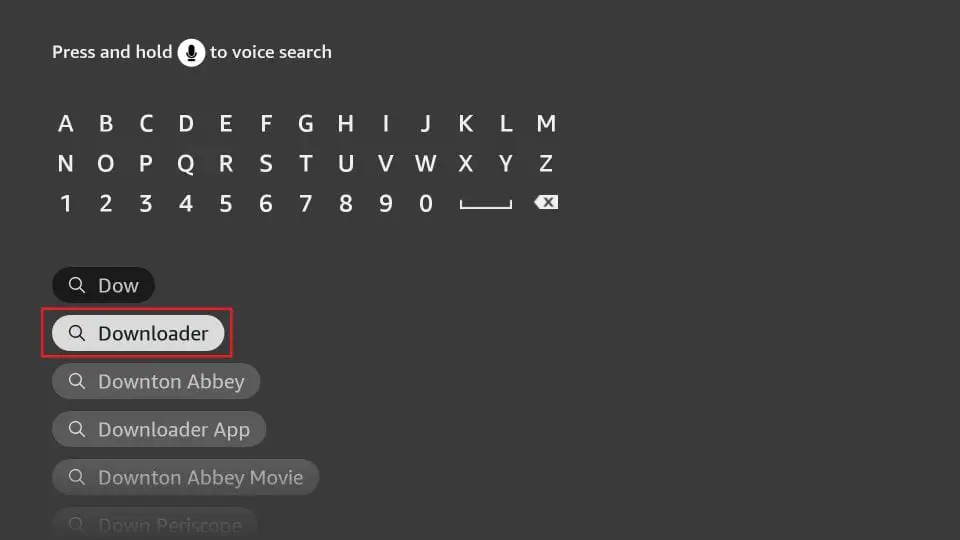
3. Type in the name of the app (which is Downloader)
Click on the Downloader option when it shows up in the search
results Choose the Downloader icon on the next screen and download and install the app
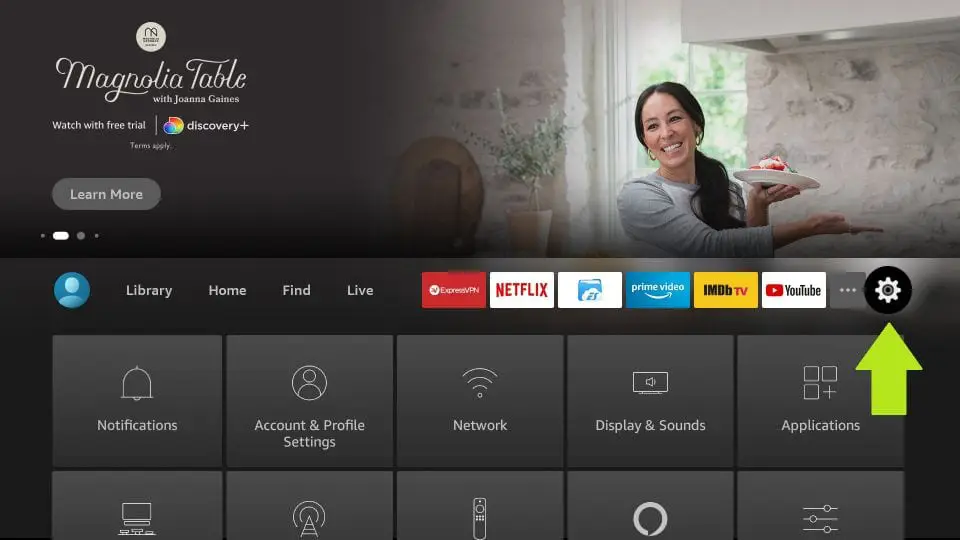
4. Return to the FireStick home screen after installing the Downloader app
In the menu bar, click Settings
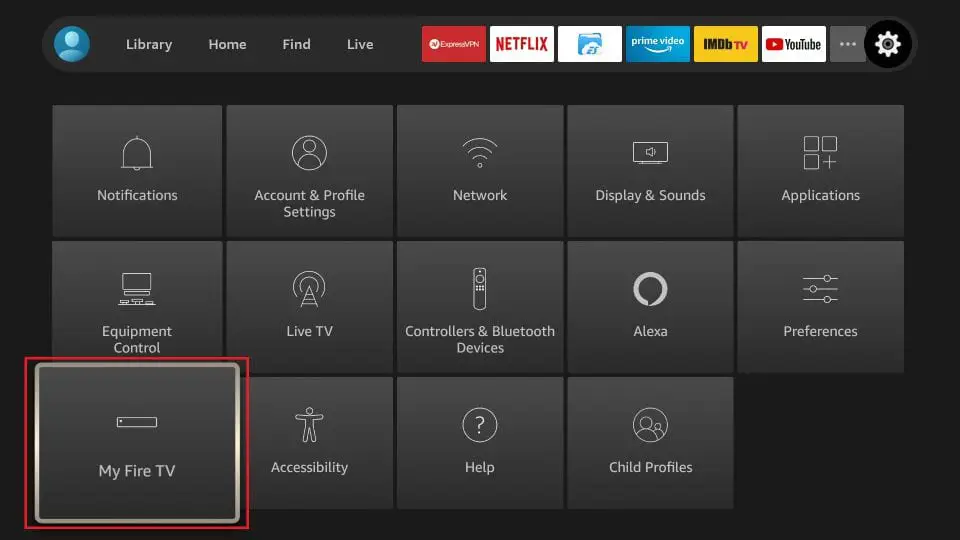
5. In Settings, choose the My Fire TV option
6. Lorsque l’ensemble d’options suivant s’affiche sur l’écran suivant, cliquez sur
Options du développeur
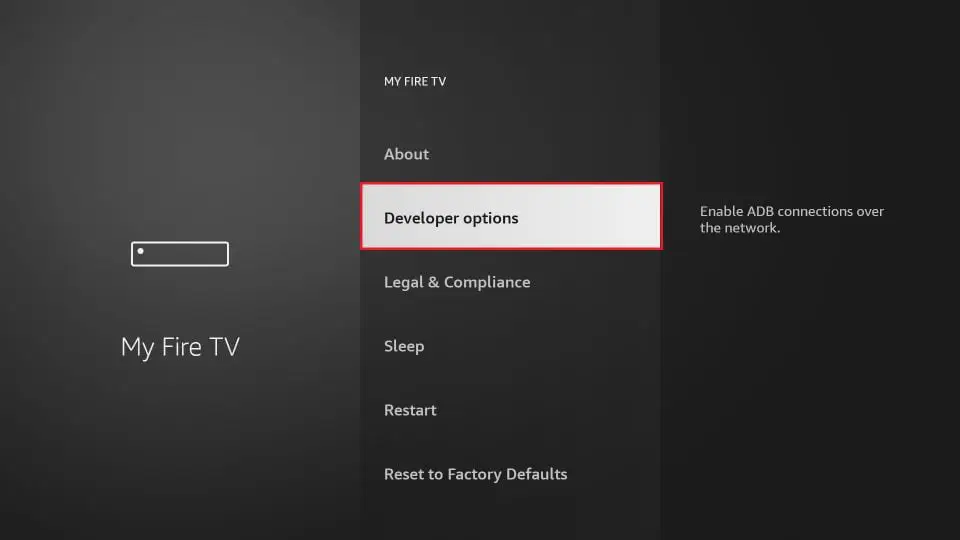
7. Cliquez sur
Installer à partir d’applications inconnues
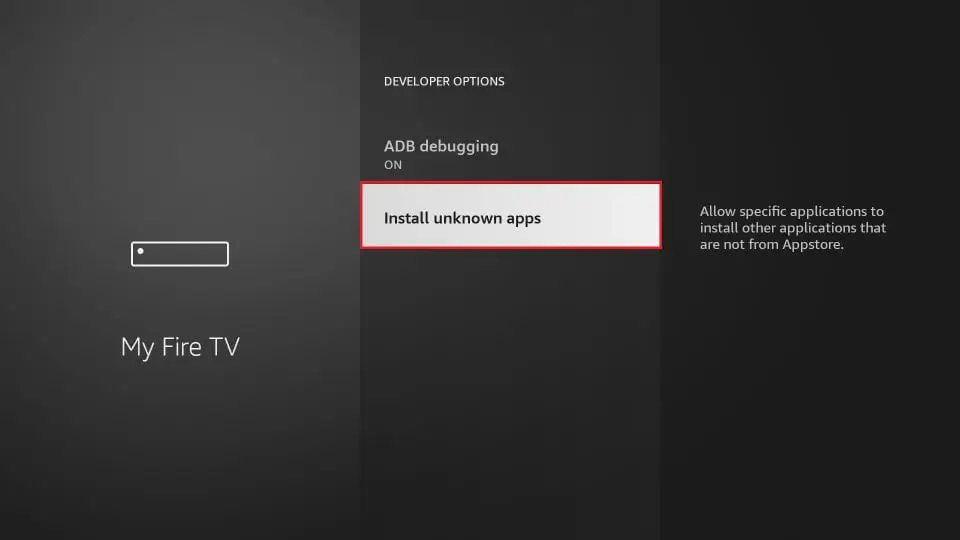
8. Cliquez sur
Téléchargeur pour changer le statut sur
ON
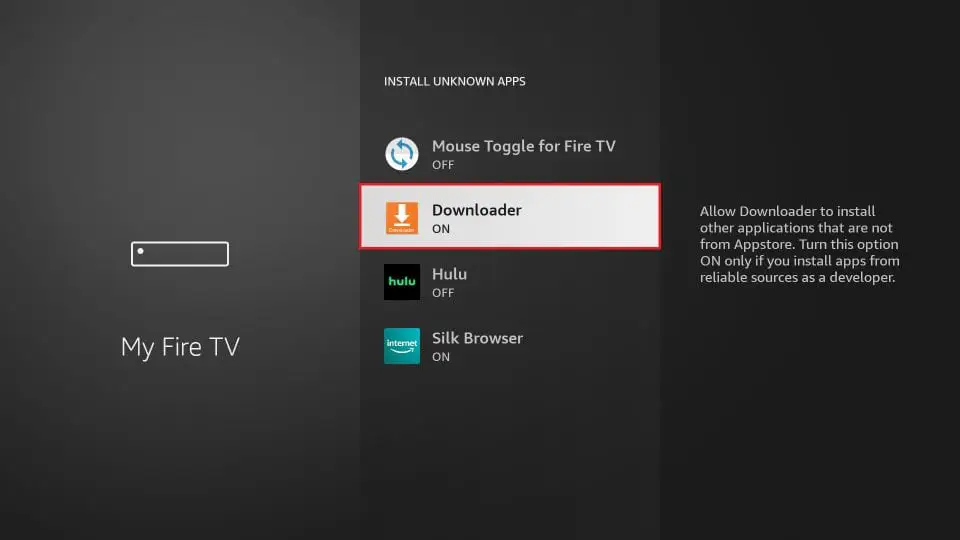
Avec cela, vous avez configuré les paramètres du FireStick pour autoriser l’installation d’IPTV Smarters et d’autres applications tierces. Suivez les étapes ci-dessous :
9. Vous pouvez maintenant ouvrir l’ application Downloader
. Lorsque vous exécutez cette application pour la première fois, une série d’invites s’affiche. Ignorez-les jusqu’à ce que vous voyiez l’écran suivant.
Sur cet écran, vous devez cliquer sur la zone de texte URL sur le côté droit (assurez-vous que l’option Accueil dans le menu de gauche est sélectionnée) où il est indiqué « http:// »
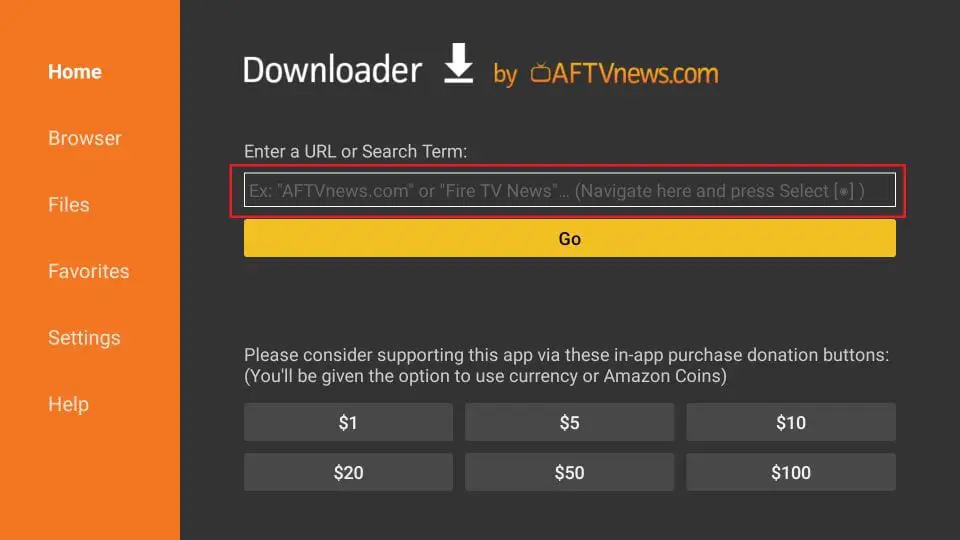
10. Allez-y et entrez le chemin suivant dans cette fenêtre : https://www.iptvsmarters.com/smarters.apk
Remarque : vous pouvez également utiliser la version raccourcie de l’URL iptvsmarters.com/smarters.apk
Cliquez sur GO
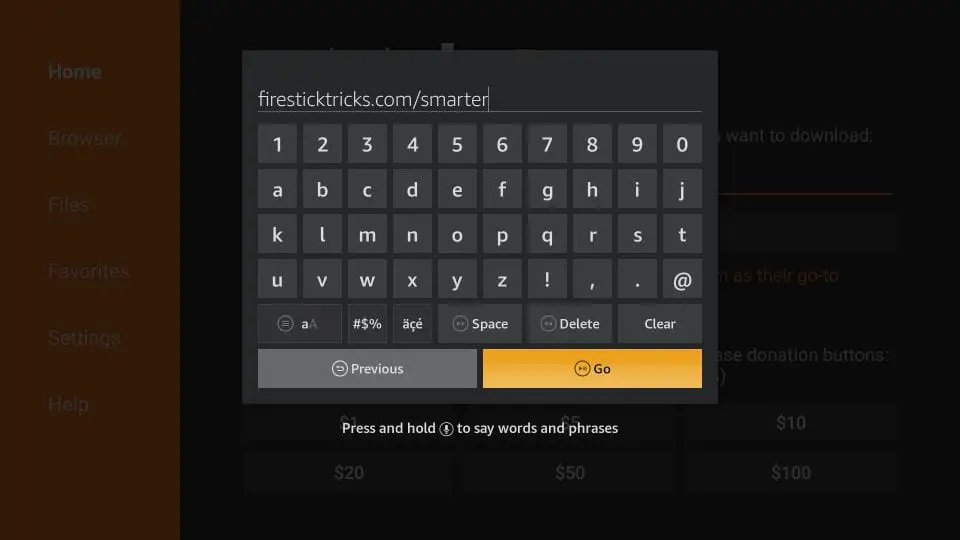
11. Attendez une minute ou deux jusqu’à ce que l’IPTV Smarter soit téléchargé sur votre appareil FireStick
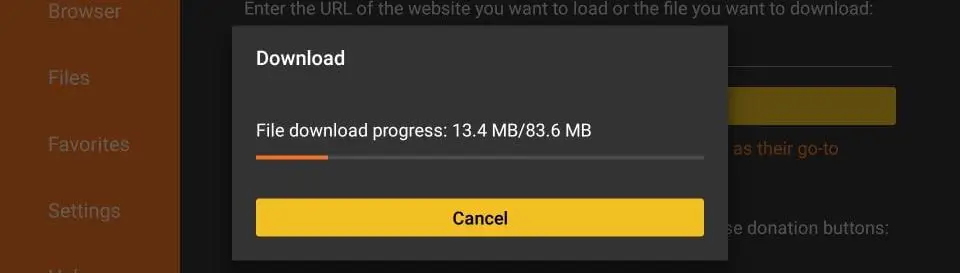
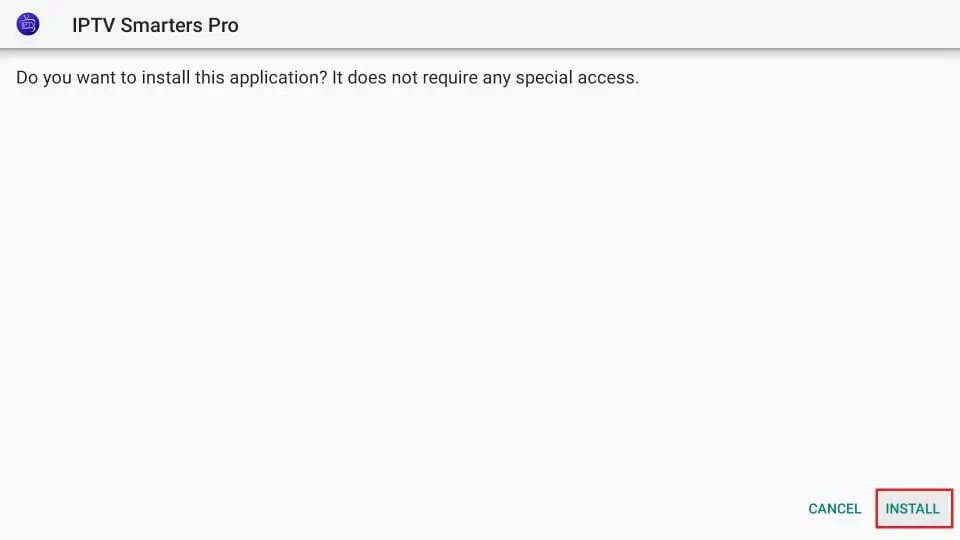
12. Une fois le téléchargement terminé, l’application Downloader exécutera le fichier APK et l’installation démarrera
Cliquez sur Installer
13. Attendez que l’installation soit terminée
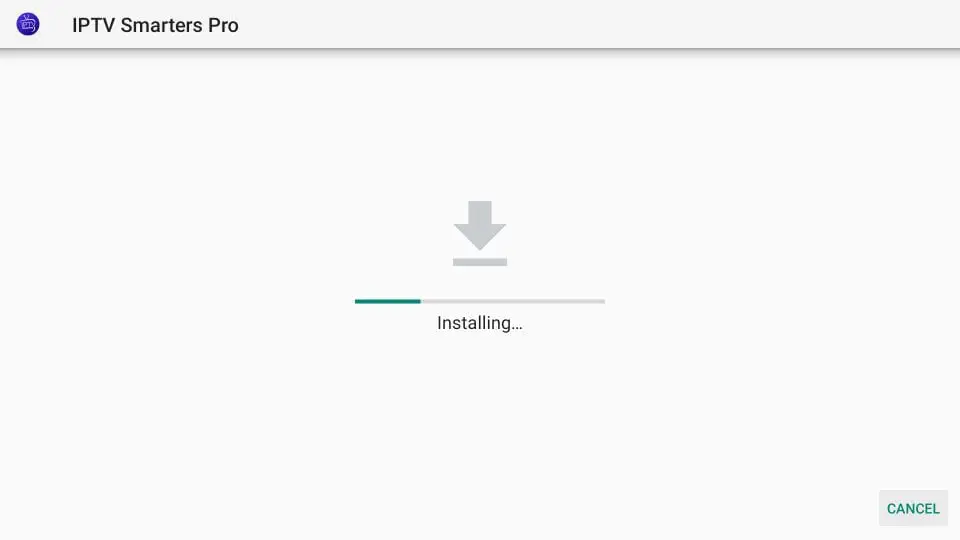
14. L’installation est terminée avec la notification d’installation de l’application
Vous pouvez maintenant choisir de cliquer sur OUVRIR et de commencer avec IPTV Smarters
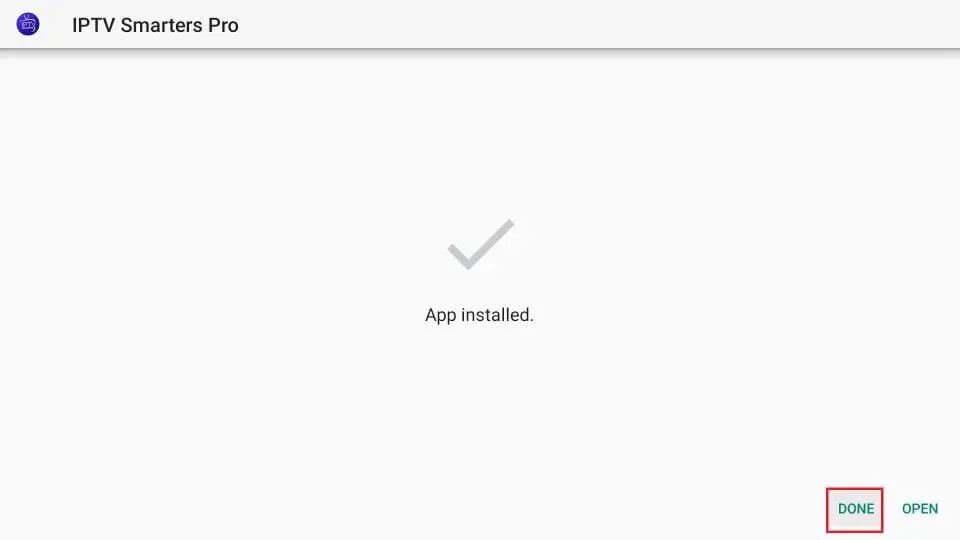
14. All you have to do is log in using the xtream code we sent you.
USING TIVIMATE IPTV PLAYER
- Go to the Play Store
- Search for Tivimate IPTV Player and download it.
- Open the app
- Click Add Playlist
- Insert your IPTV subscription URL (which will be emailed to you) in the playlist URL section
- Click OK and wait for the channels to load.
- This app is our number one recommendation.
- You can download it from the store.
- If you can't find it in the store, please download it here.
- Once installed, select the connection via the Xtream Codes API (XC API) and then log in using the username, password, and URL we sent you.

USE THE CLOUD STREAM IPTV PLAYER
- Go to the App Store and download Cloud Stream IPTV Player.
- Open the app.
- In the top left corner, click on the "dashes" icon.
- In the bottom left corner, click on the "+" sign
- Click Upload m3u file
- Click on load m3u from the web
- Add the IPTV subscription URL we sent you in your email.
USING IPLAY TV
- Go to the App Store and download iPlay TV.
- Download the IPTV subscription URL link we sent you.
- You will now be able to see the playlist.
USE GSE SMART IPTV PRO
Enter the URL of your IPTV subscription by selecting Add M3U URL.
Go to the App Store and download GSE SMART IPTV pro.
Accept the EULA rule.
Select the settings in the left corner.
Locate the menu called "Remote Playlists"
Select the button named "+"
This tutorial will help you better understand how to watch IPTV on your STB emulator. The following set-top boxes are compatible with this one. "STB Emulator" can emulate the following IPTV set-top boxes.
| MAG 200 |
| MAG 245 |
| MAG 250 |
| MAG 260 |
| MAG 270 |
| MAG 275 |
| Aura HD |
First, you need to visit Google Play Store and download STB Emulator.
You need to install STB Emulator and open it. You can now see a section called Mac Address.
You need to click on "Settings", located in the top right corner.
Next, you need to visit Profiles.
Now you need to click on the test portal. You can then "Add Profile".
Click on the "STB Template".
Select your STB model.
Go to the portal settings.
You can now access the portal email, which should have arrived in your inbox.
Now you need to select the screen resolution.
For screen resolution, choose 1280 x 720
Quit the app and restart it.
You can now see the list of channels.
- Here are the installation instructions for Openbox
- Open an Internet browser.
- Now you need to enter the M3U URL there.
- You will be asked to save a file.
- Click Save As and add a name.
- You can now copy the file to a USB flash drive. You then need to connect the USB drive to Openbox.
- Now you need to pick up the remote and follow these steps.
- Go to the menu
- Go to the local network settings
- Access the network app
- Go to IPTV Palace
- Press the yellow button to read from the USB drive.
- You can now see the command indicating success on Openbox.
USING KODI KRYOPTON 17
- Launch the Kodi app
- In the left menu, click TV
- Click Add-on Browser.
- Click on PVR IPTV Simple Client
- Click Configure
- Select General
- Enter the URL of the IPTV subscription.
- Wait for some time until the notifications load.
USING SMART ONE IPTV
You will need to use the control app named "Smart One IPTV" to proceed. You can get it for free for seven days. Then, you can make a one-time payment of about $10 and start using it.

- Download the Smart One Iptv app from the store
- Once you have downloaded the Smart IPTV app, launch it.
- Keep a note of the MAC address that you can see on the screen.
- Visit this page now.
- Navigate to the section called "From m3u playlist URL." You need to enter the MAC address here. You should also include your unique IPTV subscription URL (which was emailed to you after your subscription) under the field called M3u.
- Now click on generate.
- Restart the app and you should see the channels.
USE SMART IPTV
The procedure is almost the same as that of Smart One IPTV.